Features / Camouflage
Hidden in plain sight.
Make FirstHour look like an everyday app on your Home Screen, give it another name, or hide it completely. It's the first thing in FirstHour's Settings.
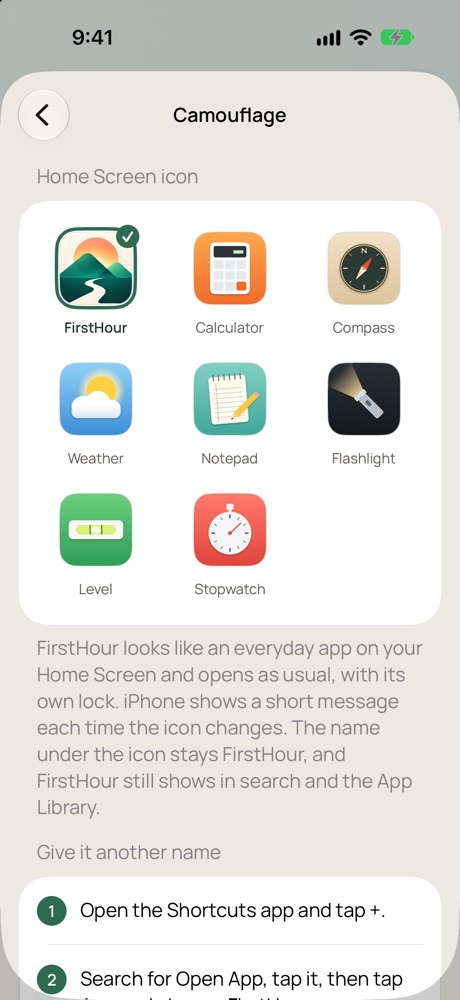
What it does
An everyday icon
Choose a Calculator, Compass, Weather, Notepad, Flashlight, Level or Stopwatch icon. FirstHour opens as usual, with its own lock. Switch back to FirstHour's icon any time.
Another name
FirstHour shows the steps to put a shortcut with any name, like "Weather", on your Home Screen, and saves the icon's picture to Files for it.
Hide it completely
FirstHour walks you through iPhone's own Hide and Require Face ID, which moves an app into a locked Hidden folder.
Behind its locks
Whatever it looks like, FirstHour still asks for Face ID or your passcode, and the Vault keeps its own pattern or PIN.
Good to know
- iPhone shows a short message each time an app changes its icon. Apps can't turn that message off.
- The name under the icon stays FirstHour. Apps can't rename themselves; that's why the other name is a shortcut.
- With a new icon, FirstHour still shows in search and the App Library under its own name. It's for a quick glance at your Home Screen, not for someone searching your phone.
- A hidden app's name can still show in a few places, such as Screen Time and Battery, Apple says. Hiding is iPhone's setting, so only you can turn it on.
- When a shortcut opens FirstHour, iPhone may show a small Shortcuts banner for a moment.